Your App Store storefront depends on your purchase account
The app isn’t available in the mainland China storefront. If you can’t find Shadowrocket, first check the country or region of the Apple ID you use for the App Store. Don’t rely only on your device’s location, system language, or the region in a product link. Your account’s country or region determines which storefront you see and can affect whether you can buy the app, which payment methods are accepted, and which currency is displayed.
The App Store button on this page links to Shadowrocket’s US storefront listing. When you open it, your device may switch to the App Store, which can show region-specific messages based on your current account. The /us/ in the link identifies the product page’s storefront; opening it does not change your account’s region. Seeing the product page in a browser also doesn’t mean your account is eligible to buy it.
Check the account used for Media & Purchases
- Open Settings on your device, tap your Apple ID at the top, then find Media & Purchases.
- Tap View Account, authenticate if prompted, then check Country/Region. The full path is Settings → Apple ID → Media & Purchases → View Account → Country/Region.
- To look for region-change options, follow the choices shown under Country/Region. Check the on-screen instructions for whether you can change regions and what requirements apply.
Be sure to distinguish the account used for iCloud from the account signed in to Media & Purchases for App Store purchases. They may be different. If you’ve bought the app before, find the original purchase record before changing account regions. This helps avoid mistaking a different account for a requirement to buy the app again.
Once the storefront displays the product, continue to the next section to verify the official app. The correct region and the correct app are separate checks: your region affects purchase availability, while the app details confirm the product’s identity. Verify both before paying.
Verify the official Shadowrocket app: check these three details
Use the App Store product page to verify the app; don’t rely only on its name in search results or an icon that looks similar. On the product page, check the developer name, official icon, and app ID together. If any detail doesn’t match, stop and return to the product link on this page to check again before buying.
- Developer
- Shadow Launch Technology Limited
- Official icon
- A blue-and-purple outlined rocket on a white background, matching the official icon shown here
- App ID
932747118; the product link ends withid932747118
Search for the full app name, Shadowrocket. Similar names or icon colors do not confirm an app's identity. The app ID is the fixed number in the product link—not a device model or order number. Check these details separately.
The developer name is long, so expand the relevant product details and check Shadow Launch Technology Limited in full. Checking only the beginning can make differences easy to miss. Once you’ve confirmed the app, review the price, compatibility, and purchase button. Don’t rely on search result summaries to determine what the purchase includes.
Official screenshot comparison: Home and Add Server
These two images are from the official App Store screenshots and can help you locate features. Home shows connection status, Global Routing, Connectivity Test, and SERVER. Add Server shows where to enter server details. Screenshots are for reference; the interface may vary with settings, language, or later changes. Verify authenticity using the three App Store details instead.
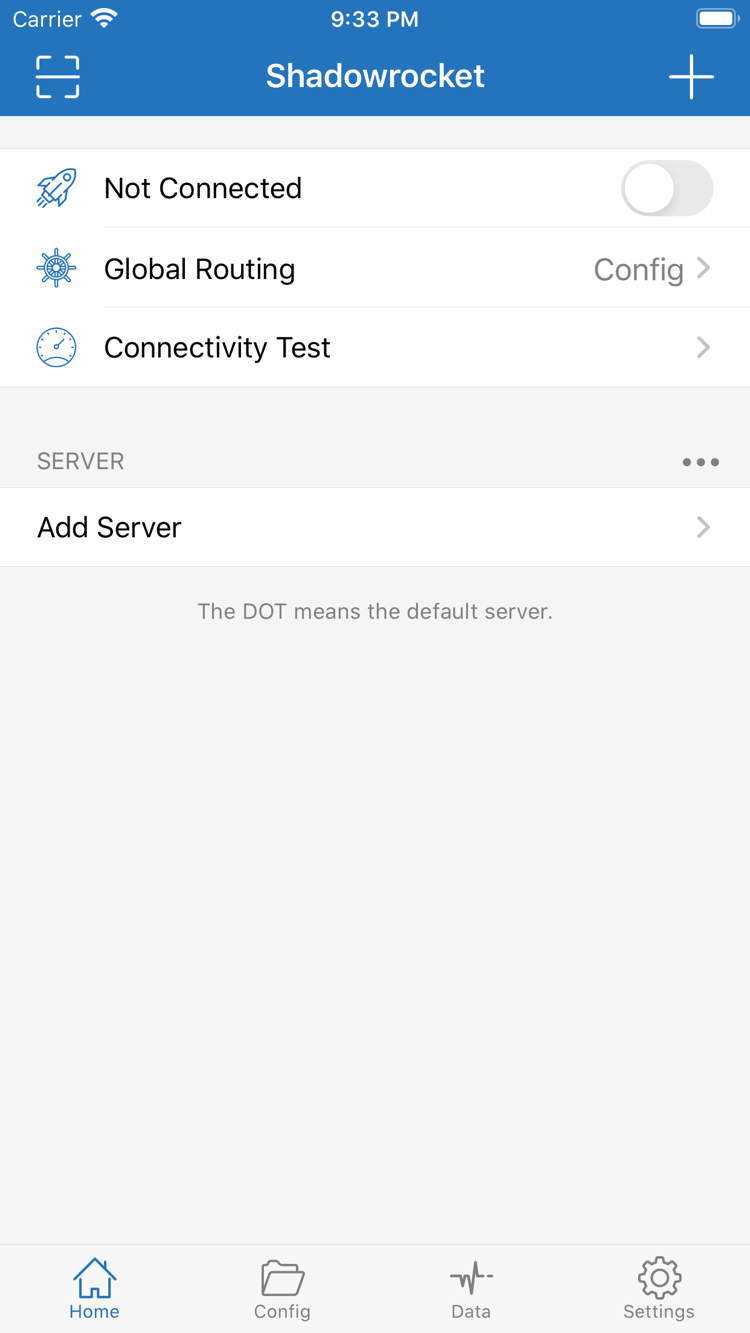
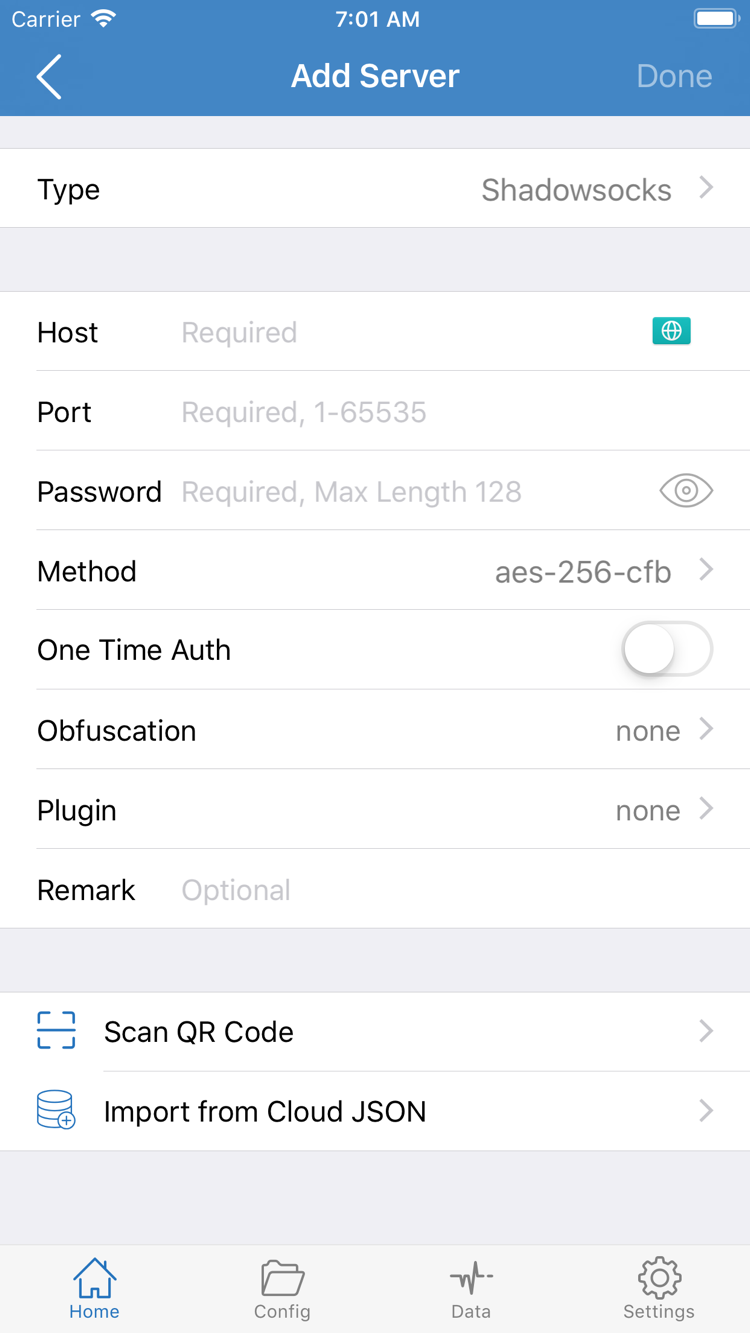
Seeing no server entries when you first open the app doesn’t mean your purchase failed. Your purchase gives you the right to use the client; the list depends on the details you import afterward. Don’t mistake demo content in screenshots for a service included with the purchase, and don’t enter server details you don’t own just to match a screenshot.
Buy and open Shadowrocket on iPhone: install it from the App Store first
After checking the storefront region and verifying the app on your iPhone, open its App Store listing from this page to check the current price and compatibility. Refer to the App Store listing for system requirements. Decide whether to continue based on the compatibility information shown for your device. Don’t treat interface examples in this guide as system requirements.
- Open the Shadowrocket product page you’ve verified, and confirm the Apple ID you’ll use to buy it.
- For a first purchase, review the price and authenticate as prompted by the App Store. If you’ve already bought the app, first check whether a redownload option is available.
- Wait for the App Store download to finish, then tap Open. If the download pauses, check your network and available storage before following any App Store prompts.
- Once Home opens, get your existing subscription or server details ready, then follow the guide to import them.
Opening the app and connecting for the first time are separate steps. If the app opens, installation is complete. To connect, you’ll also need valid server details, an appropriate Global Routing option, and system permission for the VPN configuration. Before importing your details, don’t use the connection toggle’s status to judge whether the app purchase succeeded.
What to expect when the VPN configuration prompt appears
When you first try to connect, the system may ask to let Shadowrocket add a VPN configuration. This authorizes a network configuration change on your device; it isn’t a request to pay for the app again. First, make sure the prompt appeared after you initiated a connection in Shadowrocket, then follow the system instructions. If you denied permission, return to the app and try connecting again, and check the relevant permissions on your device.
After granting permission, select your own default server and use Connectivity Test to help check the connection. A VPN icon in the status bar indicates the system’s connection status; by itself, it doesn’t confirm that a particular server, rule, or every request is working. See the getting started guide for the full import and connection steps, and the server management guide for organizing and updating existing details.
If you’ve bought the app but can’t connect yet, first distinguish an App Store installation issue from a server connection issue. For the former, check your purchase history, compatibility, and download status. For the latter, check your own server details, network, and test results. Keeping these checks separate helps avoid mistaking a connection problem for a need to buy the app again.
Use the same purchase on iPad: check configuration separately
After buying Shadowrocket once with an Apple ID, you can install it on both iPhone and iPad through the App Store. First check the account under Media & Purchases on your iPad, then look under Purchased or open the product page. Refer to the App Store listing for system requirements and purchase eligibility.
If you’ve already bought Shadowrocket on your iPhone but the iPad product page still shows a price, don’t assume you have to buy it again. First check that both devices use the same account for App Store purchases, then look for the app in your purchase history. Being signed in to the same iCloud account on both devices doesn’t necessarily mean they use the same purchase account.
Consider screen layout and configuration transfer separately
An iPad can show more content, but the layout depends on screen orientation and how the app is displayed. When following a guide, look for interface labels such as Home, Config, Settings, and Global Routing rather than relying only on screenshot coordinates. Check the details you already have in Add Server; a larger screen doesn’t remove the need to verify them.
Your app purchase can be used to redownload the client, but it doesn’t restore your server list, subscriptions, or configuration files. After installing Shadowrocket on your iPad, check whether your existing items are available. If you need to transfer them, reimport details you’ve saved or a backup you’ve verified. A successful purchase doesn’t mean configurations are automatically the same across devices.
If you plan to use Shadowrocket on multiple personal devices, first complete the import and test on one device. Once you’ve confirmed the details work, check each additional device separately. Connection permissions, network conditions, and current configuration must be verified on each device; sharing a purchase record doesn’t mean they’ll have the same connection status.
Moving to a new device or reinstalling: find the original purchase first
Sign in with the Apple ID used for the original purchase to redownload Shadowrocket from Purchased in the App Store—there’s no need to buy it again. Confirm which account owns the purchase first. Deleting the app or changing devices doesn’t delete the purchase record, but you’ll need to check separately whether the configuration saved on the device is still available.
- Open the App Store, go to your account page, and find Purchased. The name or location of this option may vary by system version; look for the app in your account’s purchase history.
- Confirm you’re signed in with the Apple ID used for the original purchase, then search for Shadowrocket and verify the app details.
- Use the redownload option in your purchase history to restore the app, then open it once the download is complete.
- Check whether your existing configuration is available. If needed, import your own subscription or server details, then select a server and test the connection.
If you can’t find the app in your purchase history, first check your purchase history, the account used for the original purchase, whether the order was completed, and the current storefront status. The fact that the app was once installed on an old device doesn’t prove that the account currently signed in owns the purchase. If the product page still shows a price, complete these checks before deciding what to do next.
Restoring the app doesn’t restore all connection details
After reinstalling, check your subscription URL, manually added servers, selected configuration file, and current Global Routing setting. Keep passwords, keys, and subscription URLs in a secure location you control; don’t post screenshots containing full credentials when asking for help. If your details have changed, reimport the information you currently know to be valid.
Before switching devices, make sure you can retrieve your existing details and know how your current configuration is backed up. Don’t treat your App Store purchase history as a backup of server details: the purchase record confirms your right to use the app, while a configuration backup restores your personal settings. Check both to avoid missing anything after reinstalling.
Check the App Store listing and your account settings to see whether Family Sharing applies. Don’t assume you can restore the app just because another family member bought it. First check the sharing records and messages available in the store, then continue.
One-time purchase: covers use of the app
Shadowrocket is a paid commercial app. The US storefront reference price is $2.99 as a one-time purchase; the app itself isn’t billed monthly. Prices appear in local currencies on other storefronts. Check the App Store product page and payment confirmation for the actual amount, taxes, and final purchase terms. The reference price on this page doesn’t replace the store’s checkout details.
App purchases and the services you already have are handled separately. If the list is empty after purchase, you can import your own details. If items appear but the test fails, check whether your details are valid and complete, and whether your network is working. Rebuying the app won’t fix these issues, and the app price doesn’t represent a connection period or service allowance.
What to check before and after payment
Before paying, check the app’s identity, your account region, and the displayed currency to confirm you’re buying the app you want. After paying, check your App Store purchase history and download status. If payment appears complete but the app hasn’t downloaded, review the order and App Store message before trying to buy again.
App updates are managed through the App Store; check for updates using your device’s store settings. Check the product page and App Store messages on your device for available updates, release details, and current compatibility. Don’t rely on older screenshots from other pages. Before updating, make sure you know how to back up and restore any important personal configuration.
After verifying your purchase, continue to the getting started guide for import and connection steps if the app is installed. If you only need help identifying English options, see the glossary. First distinguish what buying, installing, importing, and connecting each accomplish, then follow the steps in order instead of changing every setting at once.
Download and purchase FAQ: check the message you’re seeing
Why can’t I find Shadowrocket in the App Store?
The app isn’t available in the mainland China storefront. The country or region associated with your Apple ID determines which storefront you can access. Check it under Settings → Apple ID → Media & Purchases → View Account → Country/Region, then open the product link on this page. Whether you can change regions depends on your account status and the store’s requirements.
Why can’t I download Shadowrocket after opening its product page?
Check the App Store message first. Then verify the account used for Media & Purchases, storefront region, device compatibility, payment status, available storage, and network connection. Refer to the App Store listing for system requirements. If your purchase is complete but the download is pending, check your purchase history before trying to pay again.
Do I have to pay again to reinstall Shadowrocket or use it on a new device?
Sign in with the Apple ID used for the original purchase, then find Shadowrocket under App Store → Account → Purchased to download it again without paying again. If a price still appears, check the account and purchase history. After restoring the app, you’ll still need to check and import your own subscription or server details.
Can I install Shadowrocket on my iPad if I bought it on my iPhone?
Yes. Once purchased with the same Apple ID, Shadowrocket can be downloaded on both iPhone and iPad using the same purchase. Check the account in the iPad’s App Store, then look under Purchased. Refer to the App Store listing for device system requirements and purchase eligibility.
Can I install Shadowrocket on Mac, Apple TV, or Apple Vision?
The compatibility section of the same App Store listing includes Mac, Apple TV, and Apple Vision. Check the listing for supported devices, system requirements, and whether the purchase is universal. Confirm availability in the App Store on your target device before proceeding.
Where should I start if the app opens in English?
Start by identifying Home, Global Routing, Connectivity Test, and Add Server. Home shows your servers and connection status; Add Server is where you enter details for a server you already have. After importing your details, follow the getting started guide to select a server and connect. The English interface alone does not verify authenticity; check the developer, official icon, and app ID.